CVE-2021-44228, JDownloader is NOT affected
We just want to let you know that neither JDownloader nor any other of our projects make use of log4j and thus are NOT affected by this security vulnerability. We've also posted this information here.


We just want to let you know that neither JDownloader nor any other of our projects make use of log4j and thus are NOT affected by this security vulnerability. We've also posted this information here.
 AppWork is located near Nuremberg in Germany/Bavaria. We're the developers of JDownloader, the market leading download management tool with over 15 million happy users. On top of that, we work on client-side applications for some of the top 200 websites worldwide.
With only 3 people, we're still a relatively small, but highly motivated team with high aspirations, great opportunities and an extremly optimistic outlook on the future.
Joining us, you'll have the opportunity to experience rapid growth right when it's happening while actively being a part of building and growing a big company.

Have you ever wished for JDownloader to be better integrated into your browser? Well, we're working on releasing something really awesome ourselves soon, but in the meantime, we want to show you 3 browser extensions that you have been waiting for! Here are the top 3 Google Chrome Extensions and how you can use them to make downloading with JDownloader even more comfortable and faster!

We wrote a new tutorial to start as an JDownloader Developer. Learn how to check out the latest code, and run it from within the famous free Java IDE Eclipse.
Feel free to contact our Livechat in case of any questions.
Getting started as a JD-Developer
After shipping hundreds of tshirts, we stopped our “get a shirt for a donation” offer today. We will send out all pending donations, but will not accept new ones.
We want to thank all of you for supporting our project.
We wrote about the pretty new micro-donation service flattr.com some weeks ago.
The Flattr- Homepage recently relaunched and the service is now OPEN beta. This means that everybody is free to use it.
Register at flattr

Since a few month, we have our “Get a JD-Shirt for a donation”-offer running.
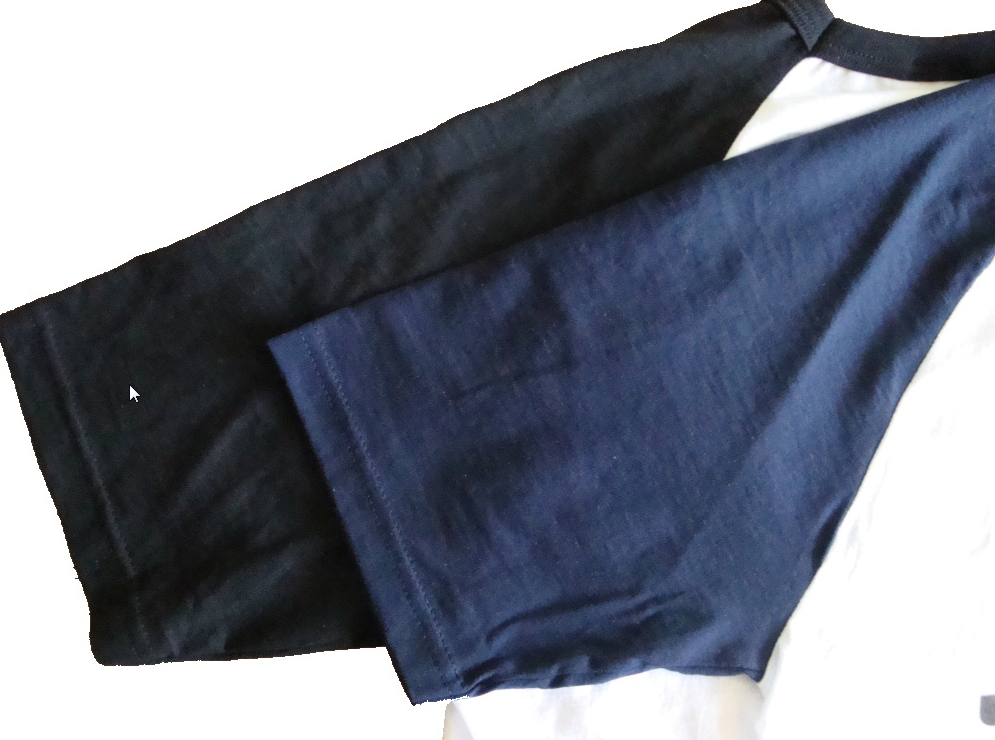
We now can offer you the “Limited Navy Blue” Edition of our shirt.
Unfortunately, we can only offer this color in size “M”.
If you want one of these shirts, visit our donation page here.
Do not forget to add “I want a Blue Shirt” in the Paypal comment!
All direct invites are gone. Register for an invite |here Since a few weeks, we have a tiny flattr button in our sidebar. Flattr is a pretty new micropayment service. Watch the video below to see how it works.
In our first week, we got ~18€ with ~60 Flattrs. Flattr is still in BETA stage. If you like to try it, please visit our Livechat to get an invite. Invites are limited, so hurry up ;-P


